> For the complete documentation index, see [llms.txt](https://ajuda.cardapioweb.com/llms.txt). Markdown versions of documentation pages are available by appending `.md` to page URLs; this page is available as [Markdown](https://ajuda.cardapioweb.com/gestao/totem-de-autoatendimento/chamariz-e-banners.md).
# Chamariz e Banners
O chamariz e o banner são as mídias visuais que vão aparecer para o cliente final no totem.
### Chamariz:
{% hint style="info" %}
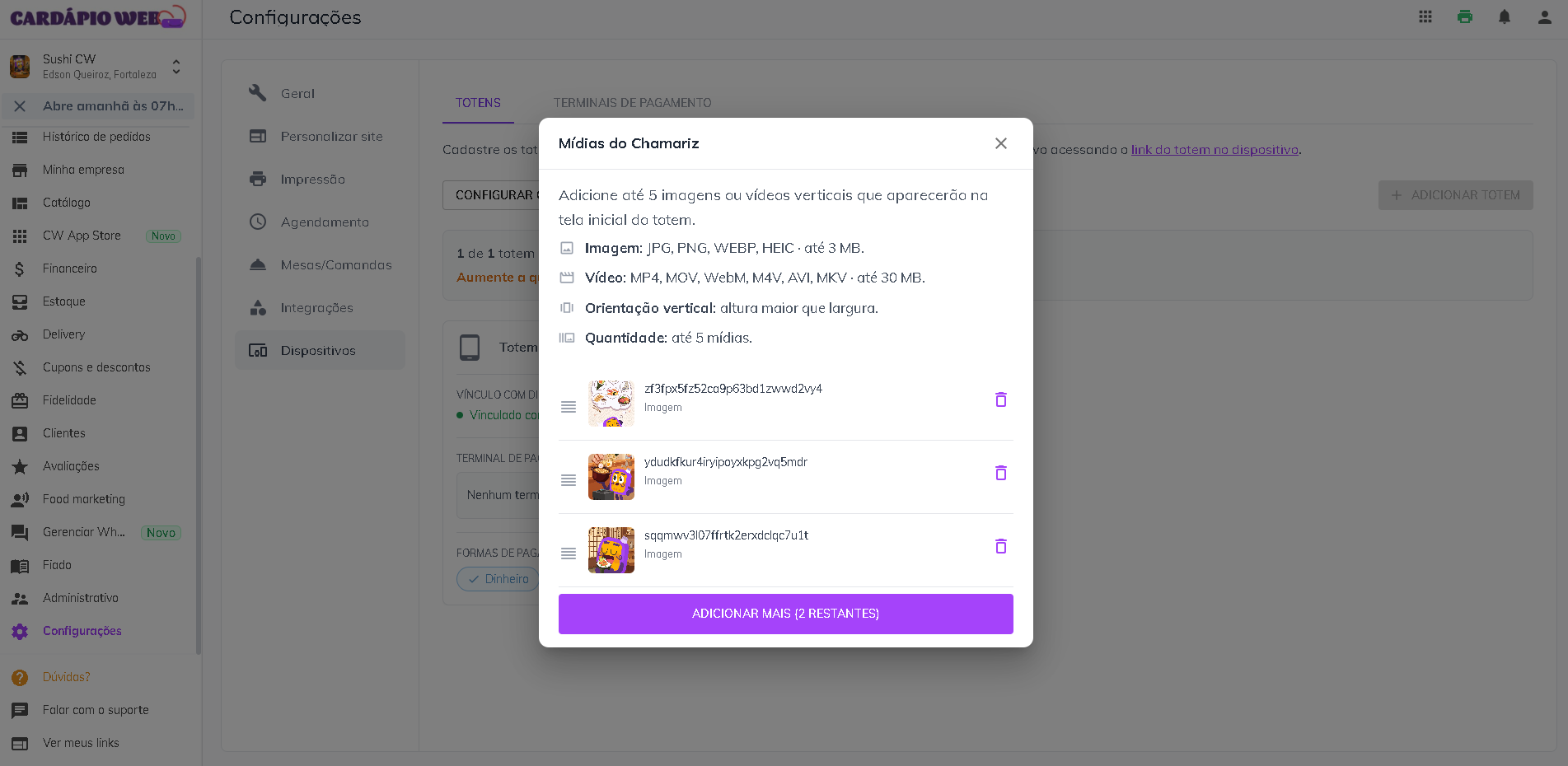
Tratam-se das mídias que aparecem quando o totem não está em atendimento. Como regra, devem ser mídias verticais (imagens ou vídeos) que aparecem na tela inicial do totem, antes de o cliente começar o pedido.
{% endhint %}
Como demonstrado abaixo:
 ### Adicionando um chamariz :
{% stepper %}
{% step %}
#### Acesse as configurações de dispositivos:
No menu lateral, clique em **Configurações** e depois em **Dispositivos**.
{% endstep %}
{% step %}
#### Configure o chamariz:
Clique em "Configurar Chamariz".
{% endstep %}
{% step %}
#### Selecione os arquivos:
Com a janela aberta, clique em "Selecione Arquivos" e selecione as mídias.
{% endstep %}
{% step %}
#### Adicione as mídias:
Adicione as mídias que deseja utilizar no Chamariz, seguindo as orientações:
* Até 5 imagens ou vídeos;
* Imagem: JPG, PNG, WEBP, HEIC - até 3 MB;
* Vídeo: MP4, MOV, WebM, M4V, AVI, MKV - até 30 MB;
* Orientação vertical: altura maior que largura.
{% endstep %}
{% endstepper %}
 ### Banner:
{% hint style="info" %}
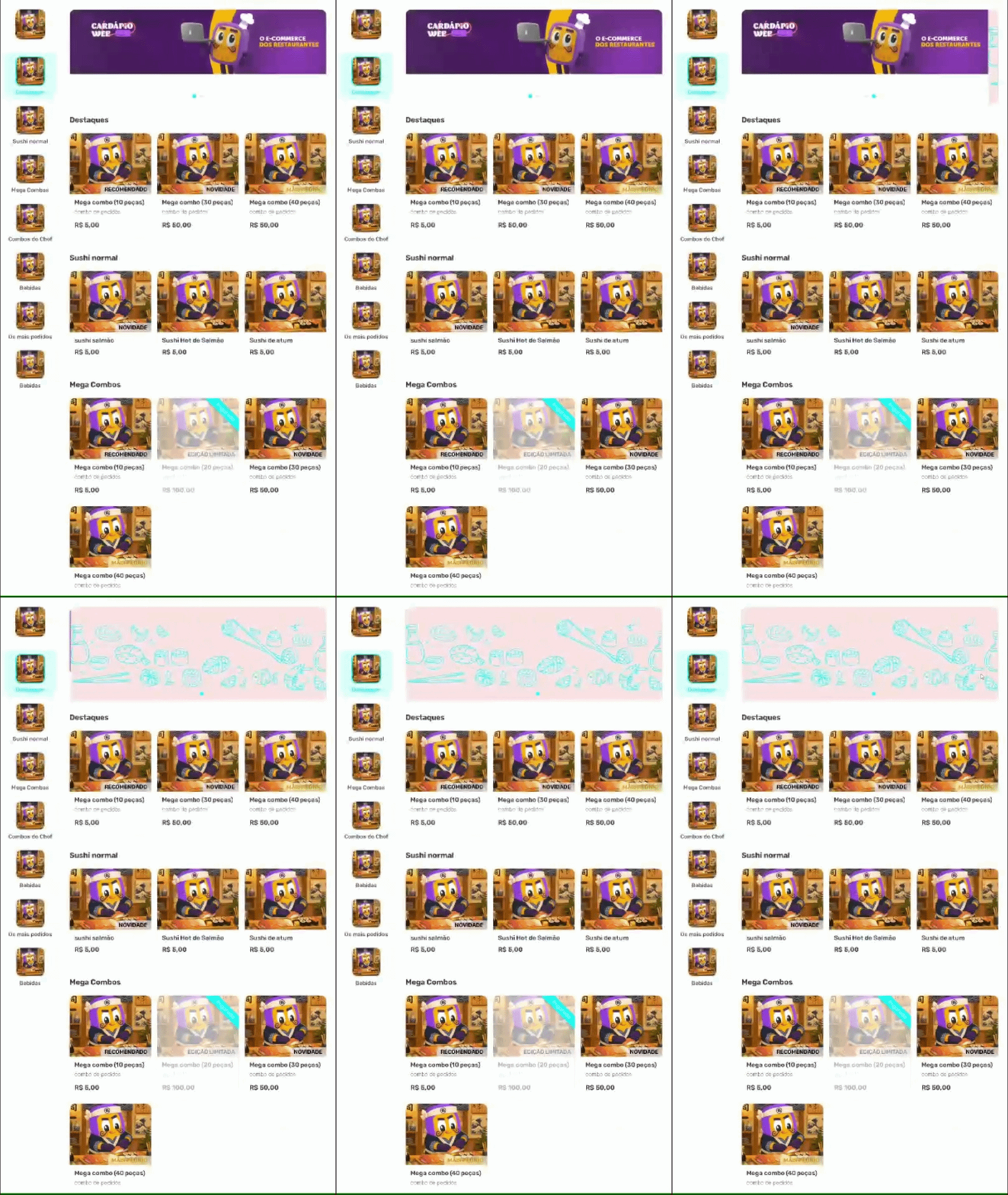
São mídias que aparecem na página de cardápio do totem. Se forem adicionadas mais de uma, elas ficarão em loop com animação de carrossel. Se nenhuma mídia for adicionada, o totem mostrará o mesmo banner que existe no cardápio digital.
{% endhint %}
Como demonstrado abaixo:
 ### Adicionando um Banner:
{% stepper %}
{% step %}
#### Acesse as configurações de dispositivos:
No menu lateral, clique em **Configurações** e depois em **Dispositivos**.
{% endstep %}
{% step %}
#### Configure os banners:
Clique em "Configurar Banners".
{% endstep %}
{% step %}
#### Selecione os arquivos:
Com a janela aberta, clique em "Selecione Arquivos" e selecione as mídias.
{% endstep %}
{% step %}
#### Adicione as mídias:
Adicione as mídias que deseja utilizar no banner:
* Até 5 imagens horizontais;
* **Tamanho ideal:** 1270 x 460 pixels.
{% endstep %}
{% endstepper %}
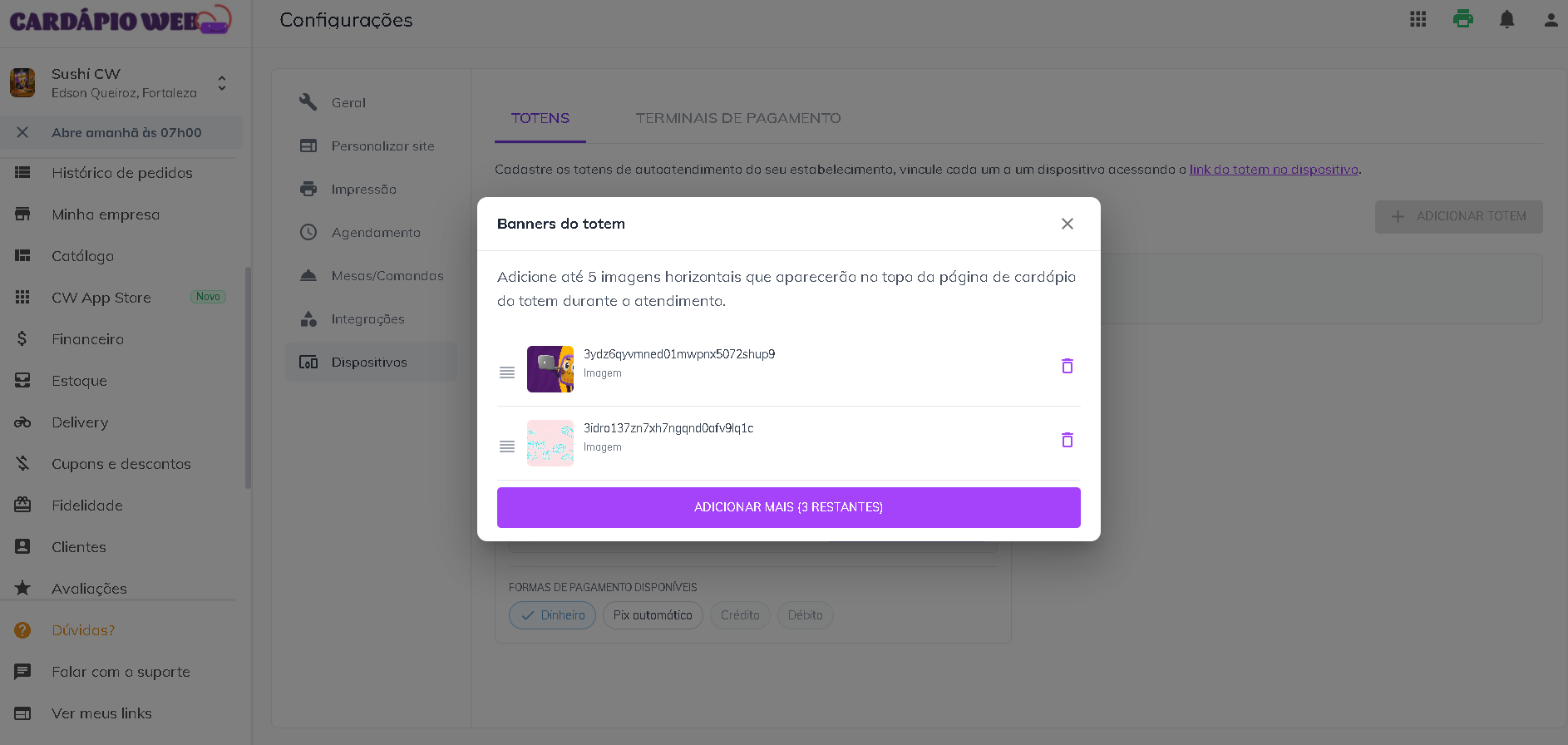 Utilizar os tamanhos corretos evita distorções e garante uma exibição profissional nas telas do sistema.
---
# Agent Instructions
This documentation is published with GitBook. GitBook is the documentation platform designed so that both humans and AI agents can read, navigate, and reason over technical content effectively. Learn more at gitbook.com.
## Querying This Documentation
If you need additional information that is not directly available in this page, you can query the documentation by asking a question.
Perform an HTTP GET request on the following URL with the `ask` and `goal` query parameters:
```
GET https://ajuda.cardapioweb.com/gestao/totem-de-autoatendimento/chamariz-e-banners.md?ask=&goal=
```
`ask` is the immediate question: it should be specific, self-contained, and written in natural language.
`goal` is what the user is ultimately trying to achieve, the reason they need the answer. Sharing it helps GitBook give you a better, more relevant answer. A goal is most helpful when it describes the outcome the user wants rather than restating the question. For example, with `ask=how do I create an API token`, a goal like `automate deployments from our CI pipeline` lets GitBook tailor the answer to that use case.
The response will contain a direct answer to the question and relevant excerpts and sources from the documentation.
Use this mechanism when the answer is not explicitly present in the current page, you need clarification or additional context, or you want to retrieve related documentation sections.